![worldview_logo_header_small.png]](https://worldviewltd.com/hs-fs/hubfs/WorldView%20Files/Images/Logo/worldview_logo_header_small.png?height=50&name=worldview_logo_header_small.png)
Features
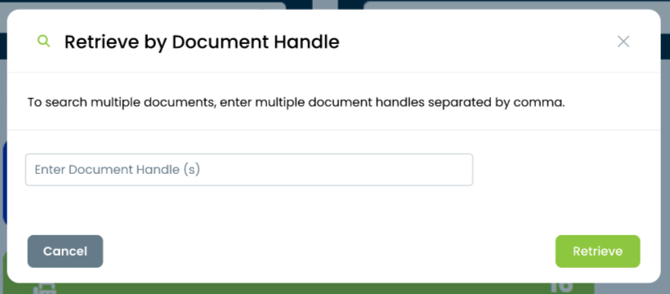
Search Document by Document Handle from Search Tab
A Document Handle is an unique ID that is assigned to each document in the system. Previously, users could not search for a document directly by its document handle and had to navigate through multiple pages or menus to locate a specific document.
What will change?
With this change, users can search for a document by entering its document handle directly from the Document Handle Search button in the top ribbon. A new Document Handle search icon will appear in the top-right corner of the web client dashboard, allowing the system to return the exact document that matches the entered handle.
Note: This is especially helpful when searching for documents uploaded through the mobile app. Mobile users can find the document handle in the History section of the app.


File Names for Downloaded Documents
Previously, downloaded documents were saved with generic file names (e.g., “Download (1)” or “Download (2)”), making it difficult to identify files after download.
What will change?
Downloaded documents will now be assigned an automatic file name. This name will include information such as the document type, patient name, and date, making files easier to recognize and organize.
Note: In some cases, such as downloads from Inbox queues, file names may still appear generic if there is not yet patient/document information assigned to those documents.
If you have questions about file naming conventions, please contact your CSM or WorldView Support.
Mobile Reports in the Web Client
Mobile Upload Log and Mobile Pending Upload reports were only available in the Unity Client. Customers using the web client did not have access to these reports, limiting visibility into mobile activity.
What will change?
A new Mobile category will be added to the Reports section of the web client. This category will include two reports: Mobile Uploads and Mobile Pending Uploads.
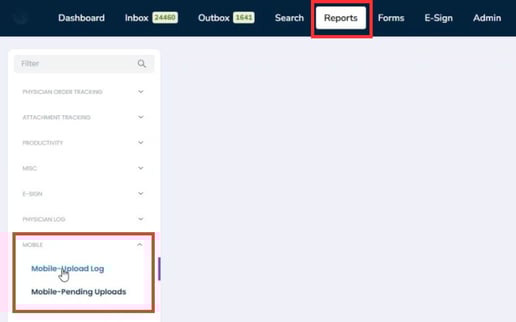
Both reports will include user-friendly filtering options, allowing users to easily refine results by username (dropdown) and date range.
-
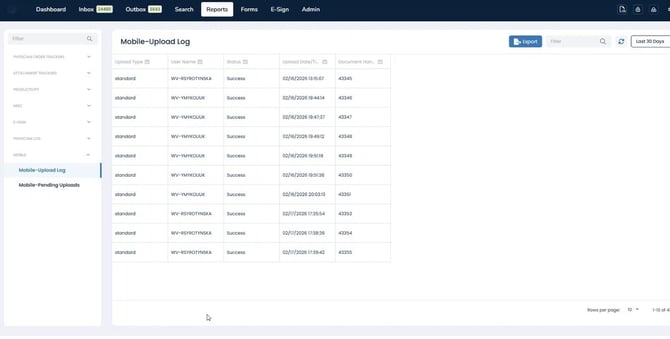
Mobile Uploads will display key details such as document type, username, upload date and time, status, and document ID.
-
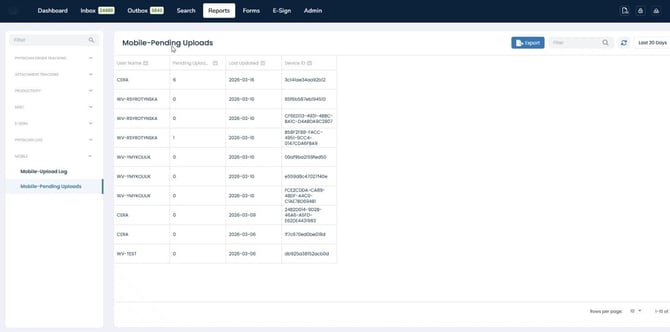
Mobile Pending Uploads will provide insight into outstanding uploads on a specific device, including username, count, device ID, and last updated information.
Expiration Date for Pause Resending in Document Tracking
Previously, setting a document to Pause Resending required manual removal once the restriction was no longer needed.
What will change?
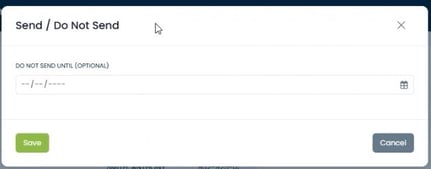
Users can now specify an expiration date when pausing the resends on a document. Once the expiration date is reached, the restriction will automatically be removed, simplifying workflow and reducing the need for manual updates.
Stamp Function in Edit Documents
The Stamp function within Edit Documents in the web client was not configurable by Admins.
What will change?
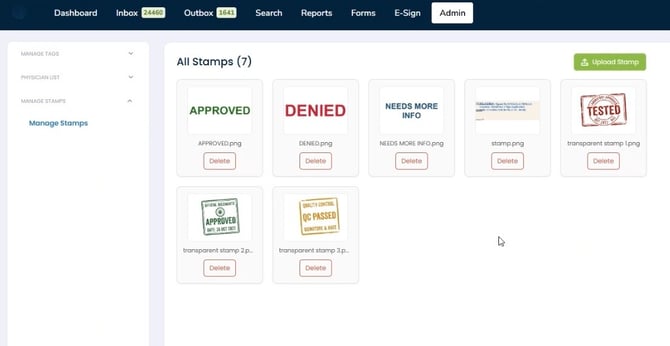
Administrators can now configure the Stamp function directly within Admin section of the Web Client, providing greater control over document editing capabilities. To add a stamp, select the Upload Stamp option and upload a image file (png, jpg, jpeg) that does not exceed 5 MB. To remove a stamp, use the Delete option associated with the stamp.
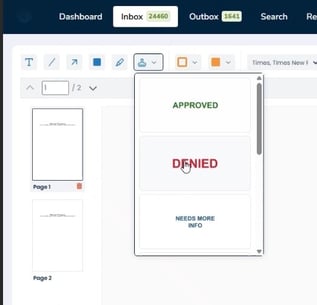
To apply a stamp, navigate to the document editing screen and select the desired stamp. The stamp can be repositioned by dragging and resized as needed within the document.

Bug Fixes
Filters Not Staying Applied
When using filters—like “Show All,” column sorts, or specific column-value filters—applying these filters would sometimes not stick after certain actions. While the Web Client would still showed the filters as active, the data would reset or revert to default, which could be confusing.
What will change?
Filters will now work as expected, staying applied even after refreshing the grid. This means the data you see will always match the filters and sorts you selected, providing a more reliable and consistent experience.
Resume Resending Option in Hold for Signature Queue
In the Outbox under the Hold for Signature queue, users could pause and resume resending documents using the options in the three-dot menu. However, if a resend was paused and the user returned later, the Resume Resending option was no longer available, even when the document was not set to Do Not Send.
What will change?
The Resume Resending option will be available whenever a document is paused, ensuring users can continue sending documents without disruption.
Note: If you experience any issues with this functionality, please contact WorldView Support.
Consistent Owner Flag Color Across Queues
When navigating between queues in the web client, the color of the Owner flag could change. This caused confusion, as users expected the flag to maintain the same color for a given document during their session.
.webp?width=670&height=386&name=Untitled%20design%20(44).webp)
What will change?
The Owner flag will now maintain a consistent color when moving between queues. Users can rely on the color to accurately reflect document ownership throughout their session.
Note: If your browser cache is cleared or you switch devices, the Owner flag color may change.
Auto-Populate Referral Date in Web Client
In the Web Client, the Referral Date field appeared blank when entering new referrals from the Inbox. In the legacy OnBase App, this field automatically populated when a referral was received, helping teams track referral aging and workflow speed. In the Web Client, staff had to manually enter the date during indexing, leading to inconsistencies and gaps in reporting.
What will change?
The Referral Date field in Web Client will now auto-populate with the date the referral is received.
-
The field will remain editable, allowing corrections if needed.
-
The date will display consistently across Referral Tracking and Attachment Tracking reports.
Correct Recipient Selection When Sending Multiple Faxes in Web Client
When sending a tracked document via Send to Fax in the Web Client, if a user sent a fax to an Other Recipient and then immediately sent another fax to a Physician, the second fax could incorrectly use the recipient information from the first fax. This caused faxes to be sent to the wrong recipient.
What will change?
The Web Client will now correctly clear and apply recipient information for each new fax. Users can confidently send multiple faxes in succession without risk of carrying over recipient details from a previous fax.